Collectors and sales
Make a presentation and send it privately
Fair and exhibition previews in your house style, as a PDF and as a web page, with one private link per collector so you see who opened it.
- 1
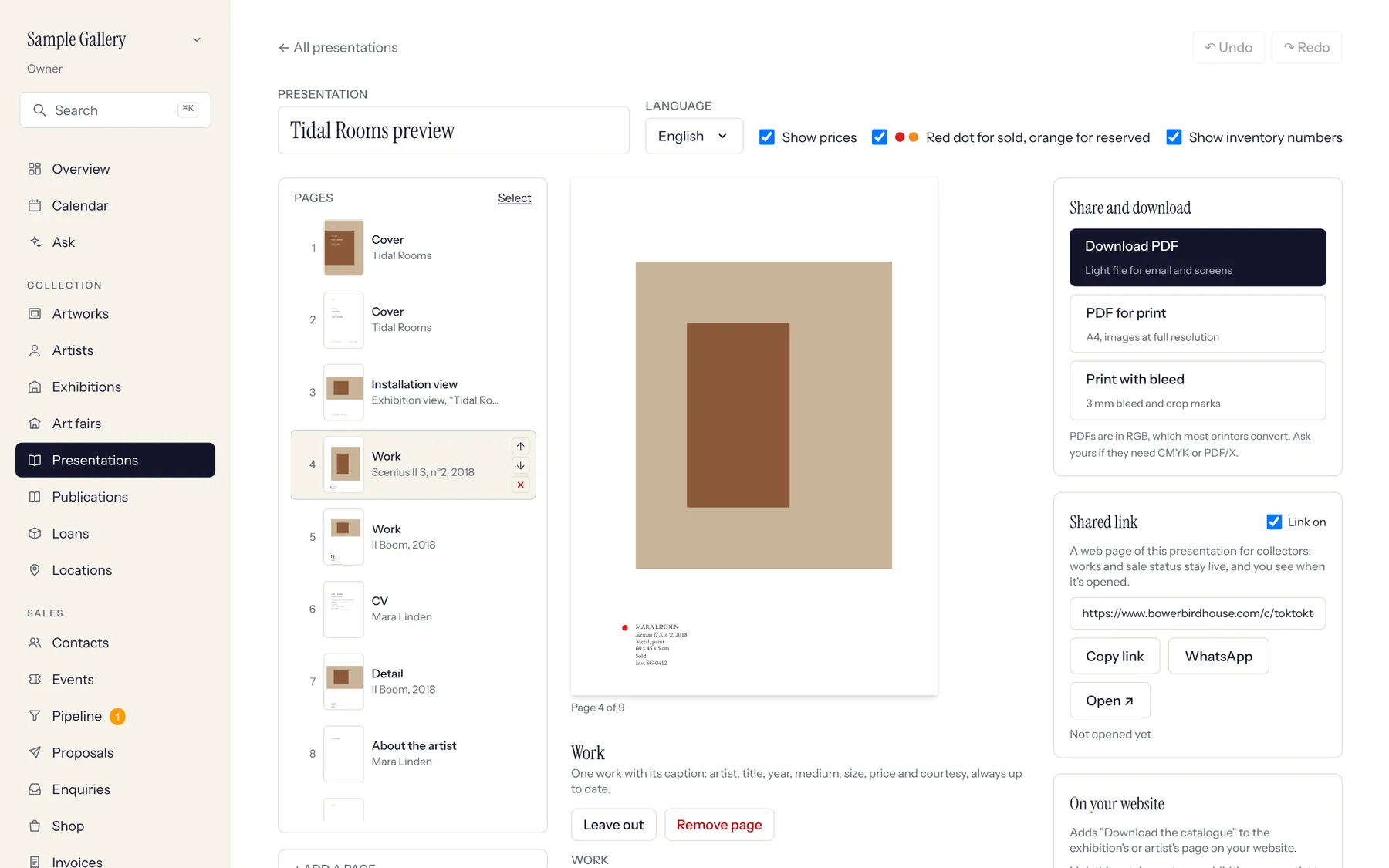
Start from an exhibition, a fair, a selection or an artist (Make a presentation), or from Presentations, New. The cover, the works, a detail page for each extra photograph, About the artist, About the gallery and Contacts are laid out for you.
- 2
Click a page to change it. Drag pages in the Pages list to reorder them, add works in bulk from an exhibition or list, and undo with ⌘Z. About the artist uses the biography on the artist's record: if it's empty, the page tells you. On Contacts, tick the team members to show.
- 3
Make the PDF: Screen (sharp when zoomed in, light enough to email), Print, or Print with bleed and crop marks. After a print PDF, works whose pictures are too small to print sharply are listed: upload a larger picture on those works.
- 4
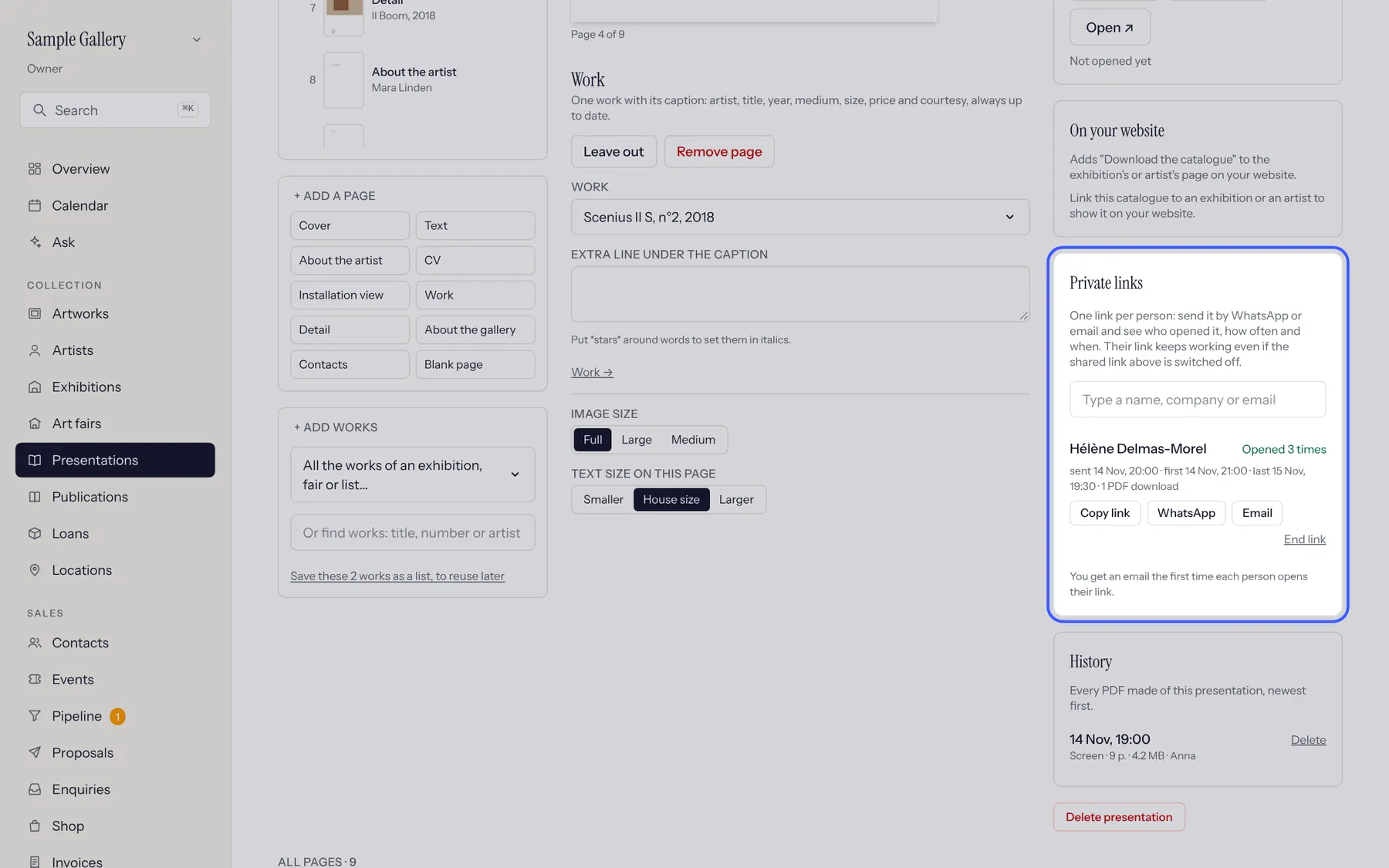
Private links: type a collector's name to give them their own link, then send it with Copy link, WhatsApp or Email. You see when each person opened it, how often and whether they downloaded the PDF, and you get an email the first time they open it. End link stops one person's link without touching the others.
- 5
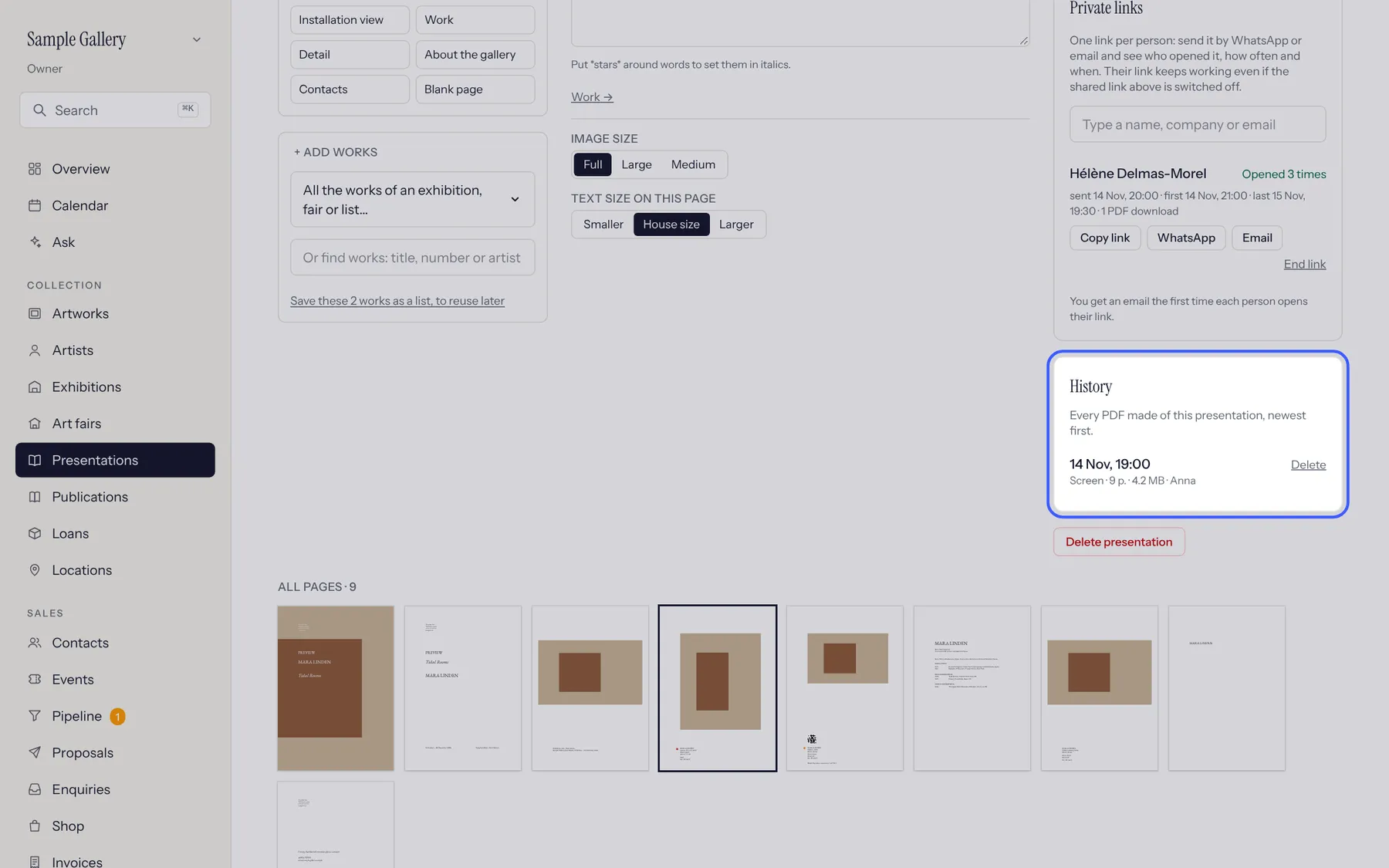
History lists every PDF made of the presentation, with the date, the kind, the number of pages and who made it. Download an earlier version again, or delete the ones you no longer need.
- 6
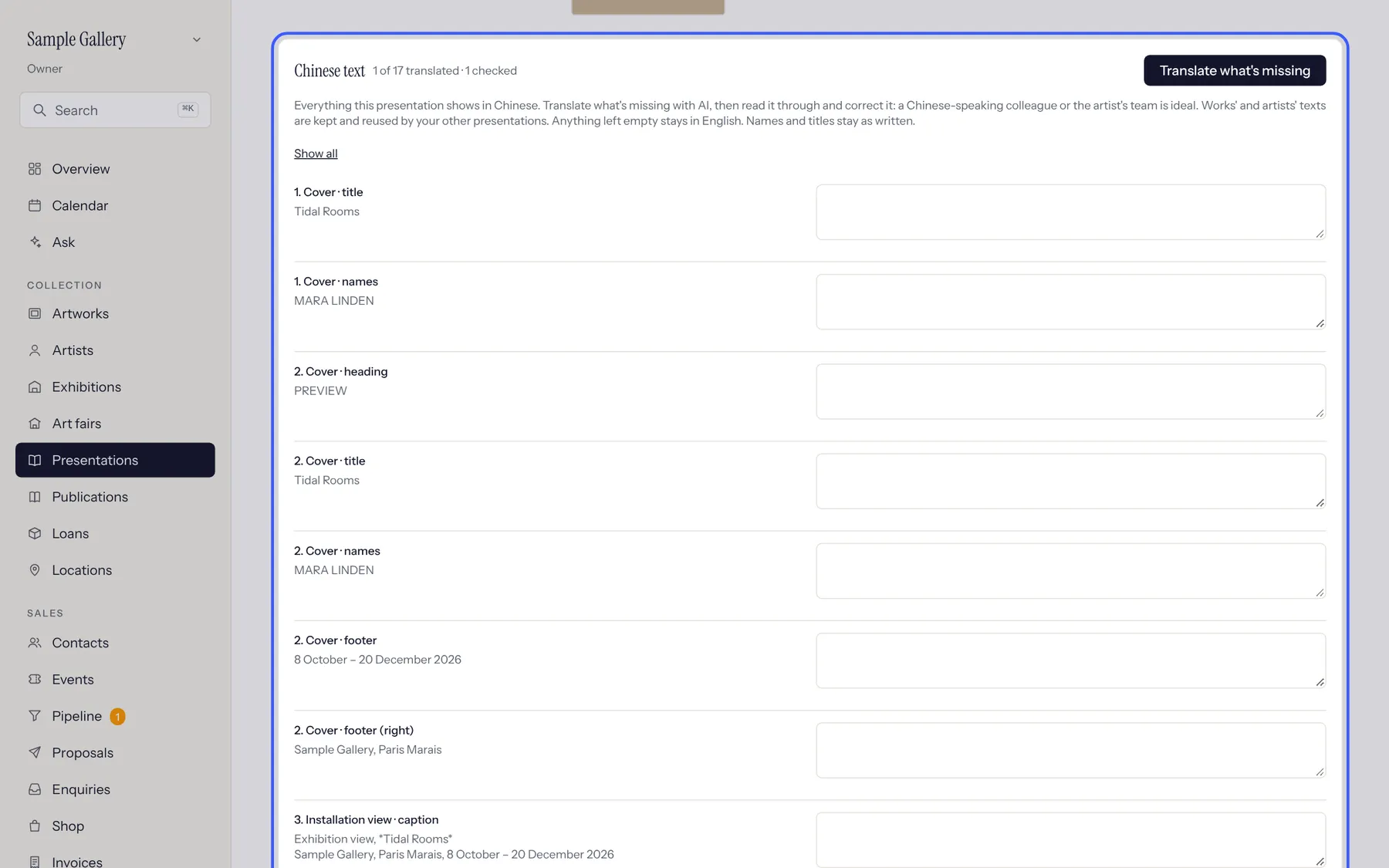
In Chinese: choose 中文(简体) Simplified or 中文(繁體) Traditional in Language. A Chinese text panel lists every text, English beside Chinese. Click Translate what's missing, then have someone who reads Chinese check each text and tick Checked. Works' and artists' translations are kept for your next presentations; anything left empty stays in English.
See also
Selections: gather works or people on a board
Pick works (or contacts) as you browse, keep them under a name like November selection, then make a presentation, a proposal or a guest list from them.
Send a proposal
A private page with a few works and prices for one collector. You see when it's opened; they can reserve in one tap.
The artwork record
Everything about a work in one place: status, price, location, sales, exhibitions and files.
Your website in Chinese
Add 中文 next to FR / EN for Chinese-speaking collectors. Your texts are translated by AI and appear once checked.
A question that isn't here? Write to us.