Your website
Build your homepage and pages
Put sections one under the other, link pictures to your artists and exhibitions, then publish.
- 1
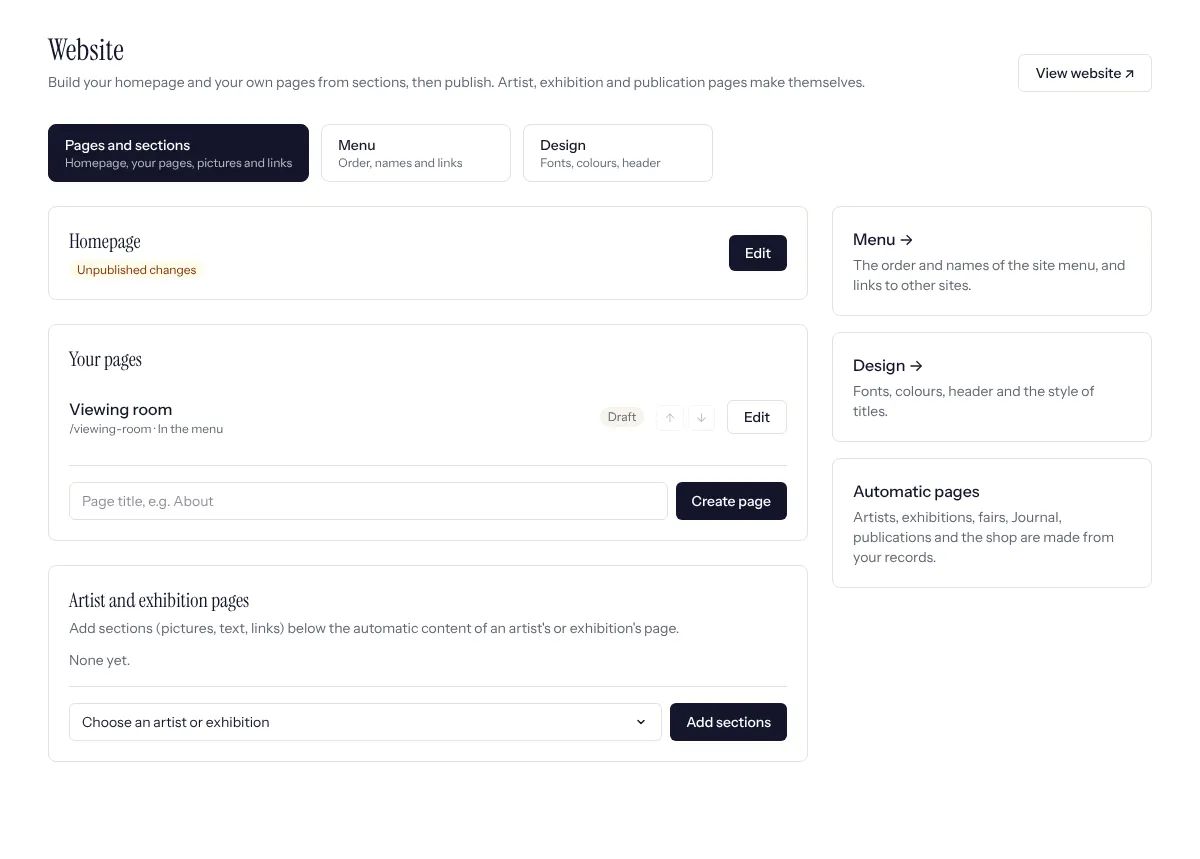
Open Website in the menu (under Outreach). Three tabs sit at the top: Pages and sections (what is on each page), Menu (the site menu) and Design (fonts, colours, header). Homepage is your first page; under Your pages, type a title (About, Viewing room, Press) and press Create page. Artists, exhibitions, fairs, Journal, publications and the shop make their own pages from your records.
- 2
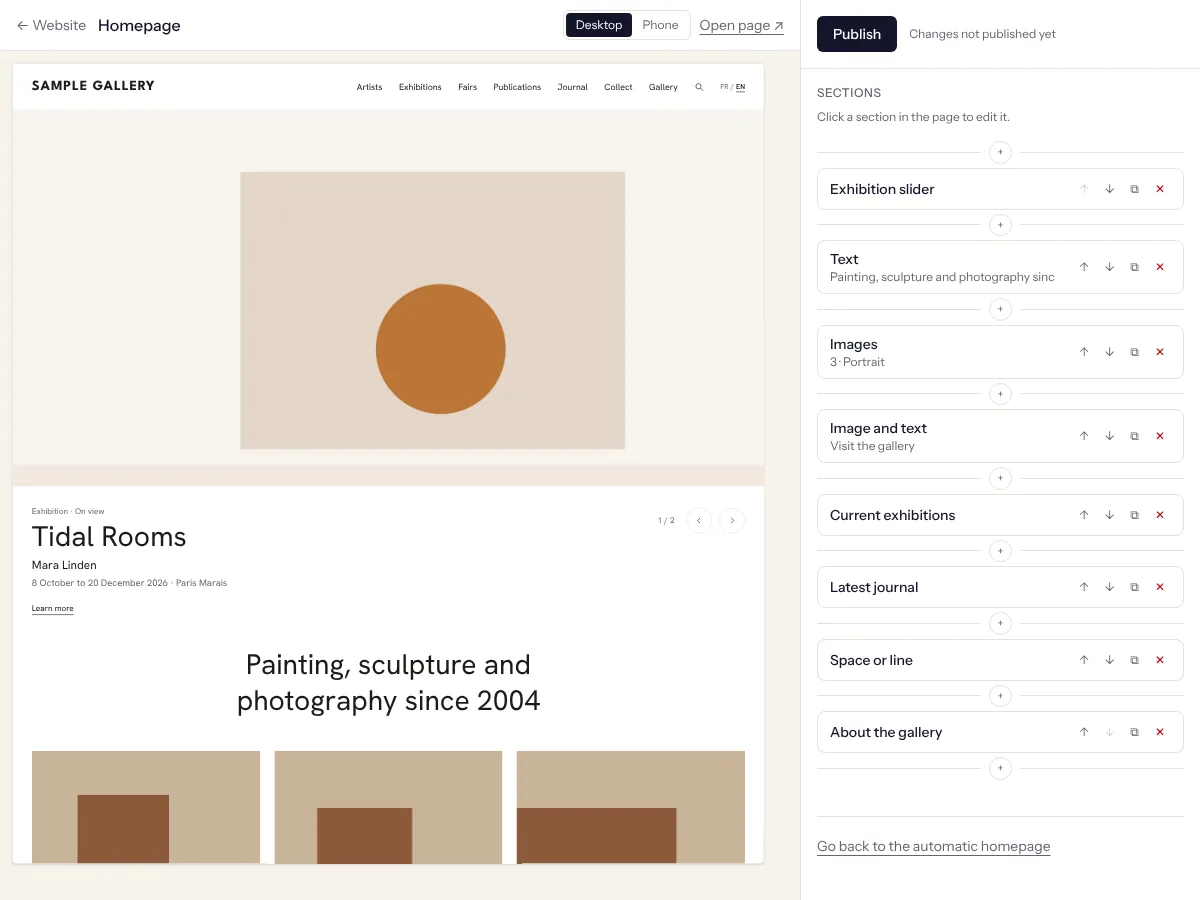
Press Edit. The real page is in the middle and the list of sections on the right. Click a section in the page, or in the list, to change it. The arrows move it up or down, the double square copies it and the cross removes it. Desktop and Phone show both layouts.
- 3
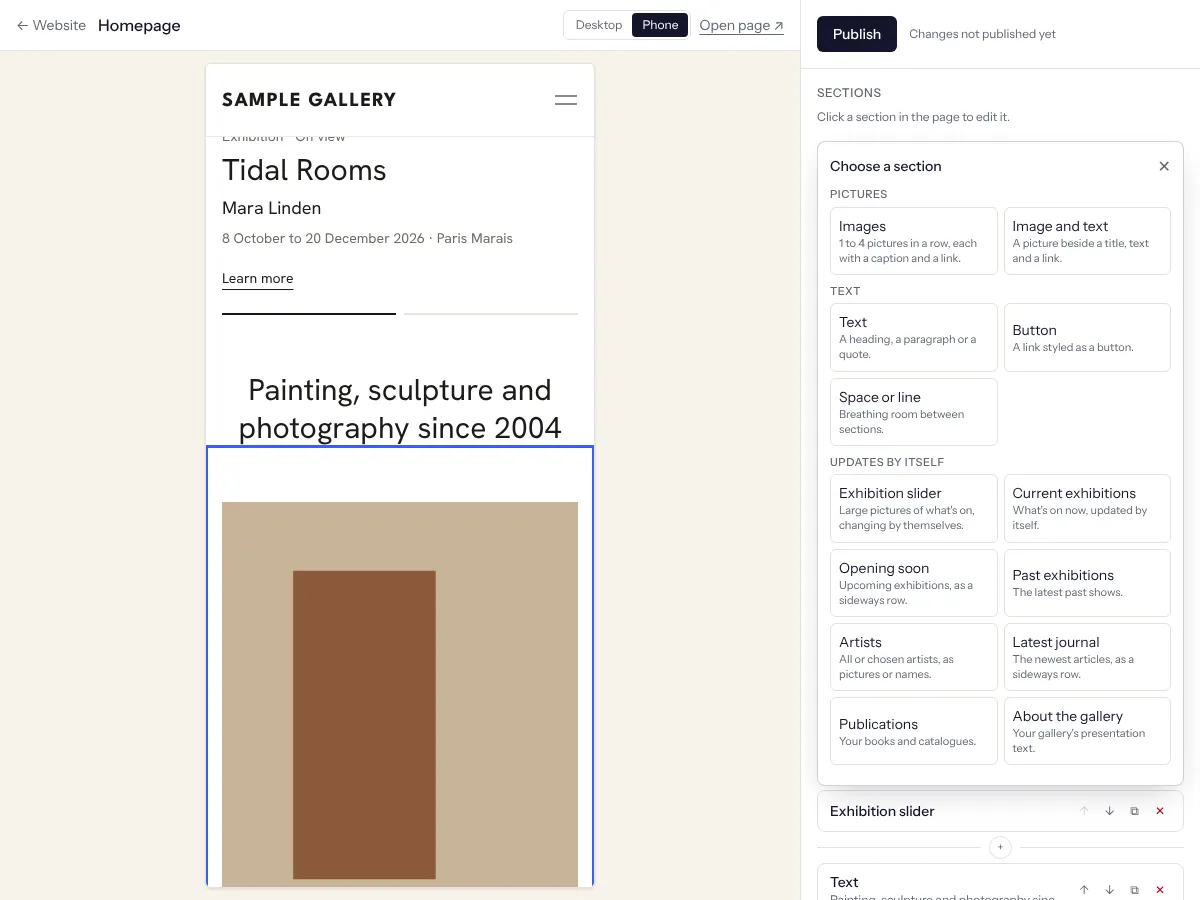
Press a + between two sections to add one: Images (1 to 4 in a row), Image and text, Text, Button, Space or line, and sections that update by themselves, such as the exhibition slider, Current exhibitions, Opening soon, Artists, Latest journal or About the gallery.
- 4
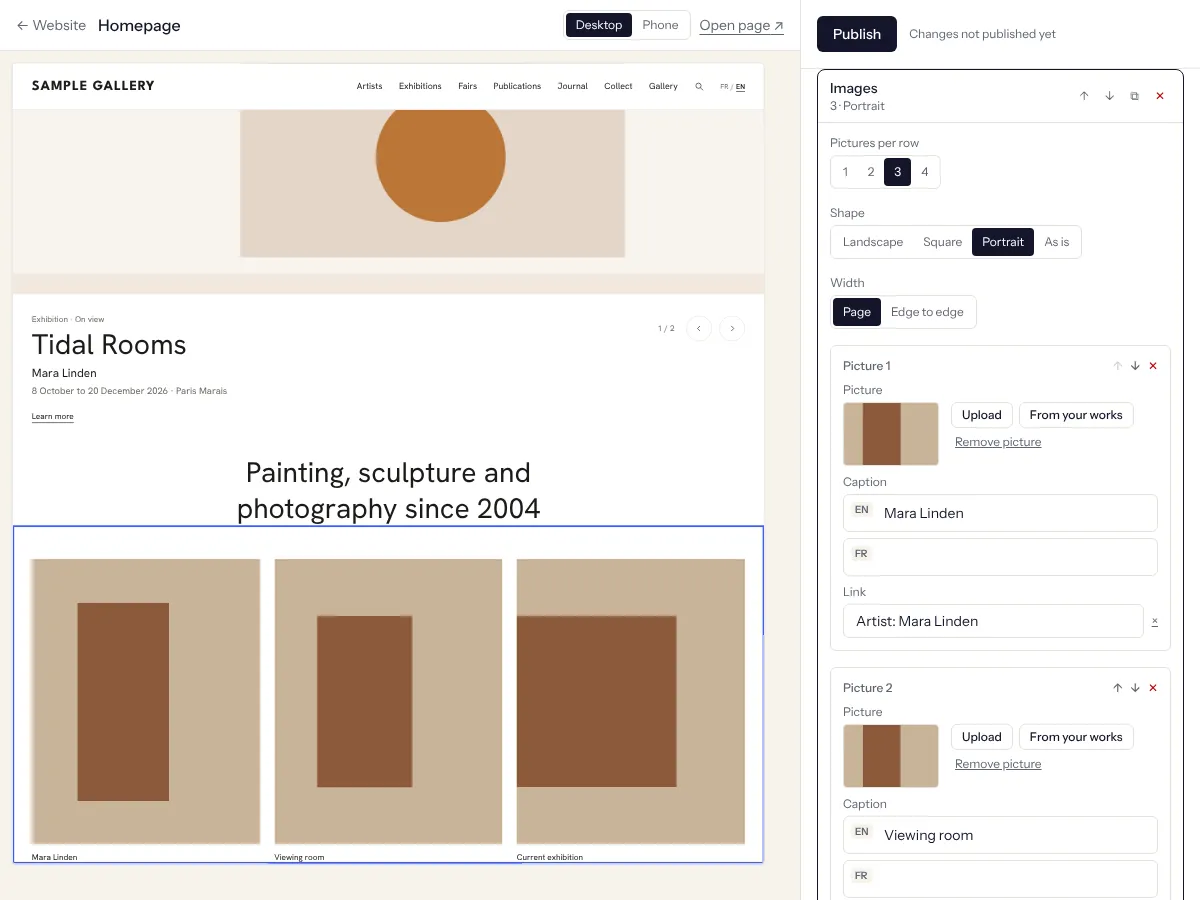
In Images, choose how many pictures per row, their shape and the width. For each picture: Upload, or From your works; a caption in English and French; and a Link. Type a name in Link to pick an artist, exhibition, work, publication, article or page, or paste an outside address.
- 5
Sections that fill themselves can still be pictured your way. Click the exhibition slider: choose Automatic (what's on now) or pick the exhibitions and their order, and press Change picture under any of them to use one of the exhibition's own pictures, search all your pictures or upload one. In the Artists section, click an artist in the page to jump to them and change their picture. A picture changed here becomes the cover of the exhibition or artist, everywhere on the website.
- 6
Changes save as you go, but visitors only see them once you press Publish. The status next to it says Not on the website yet, Changes not published yet, or Live and up to date.
- 7
For your own pages, Page settings holds the title in both languages, whether it shows at the top, whether the page goes in the website menu, and its address. Order pages in the menu with the arrows on the Website page.
- 8
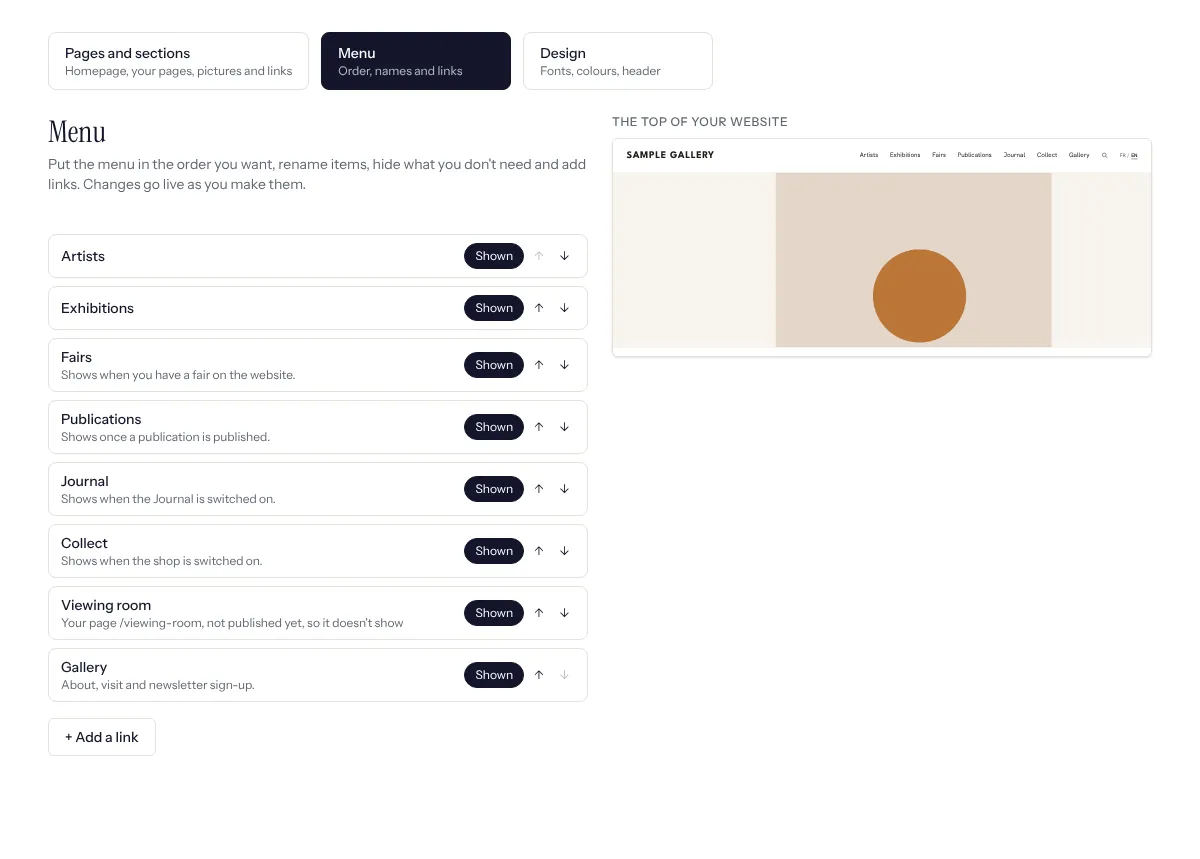
Menu, on the Website page, arranges the site menu: move items with the arrows, click one to rename it in English and French, press Shown to hide it, tick your pages in or out, and add links to other sites (a press page, an online viewing room). Changes go live as you make them; Go back to the automatic menu undoes them all.
- 9
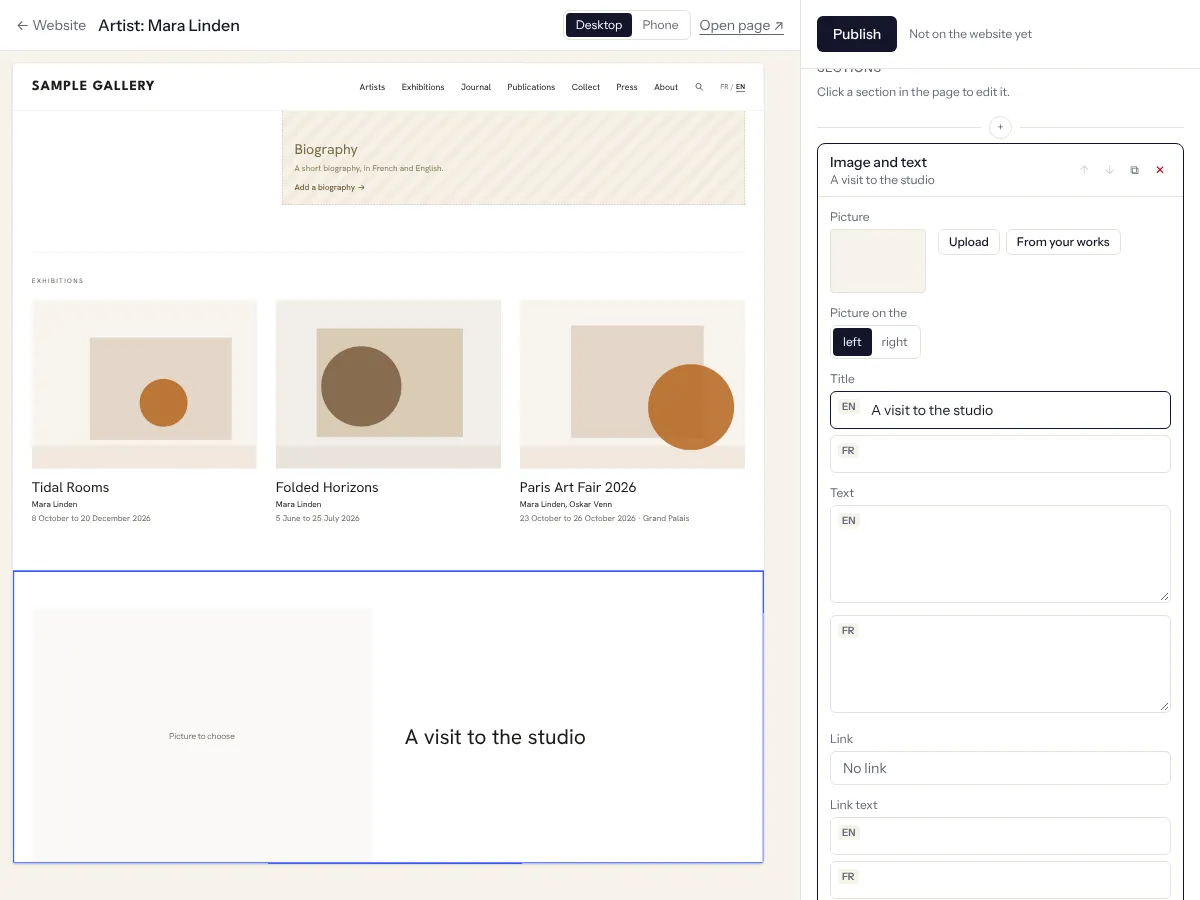
To add sections under an artist's or exhibition's page, choose it under Artist and exhibition pages and press Add sections, or press Add sections to the page on the artist or exhibition itself. The page's automatic content stays at the top; your sections follow, and go live with Publish.
See also
Design your website
Pick a starting look, then adjust typography, colours, header, the top of the homepage and the Artists page, with a live preview.
Choose what's on your homepage
The featured exhibition, the sliders for Opening soon and the Journal, and which sections show, in what order.
The Journal, your website's blog
News, conversations and a closer look at a work, in French and English. Shown on your site only if you want it.
A question that isn't here? Write to us.